First, identify which ads you mean
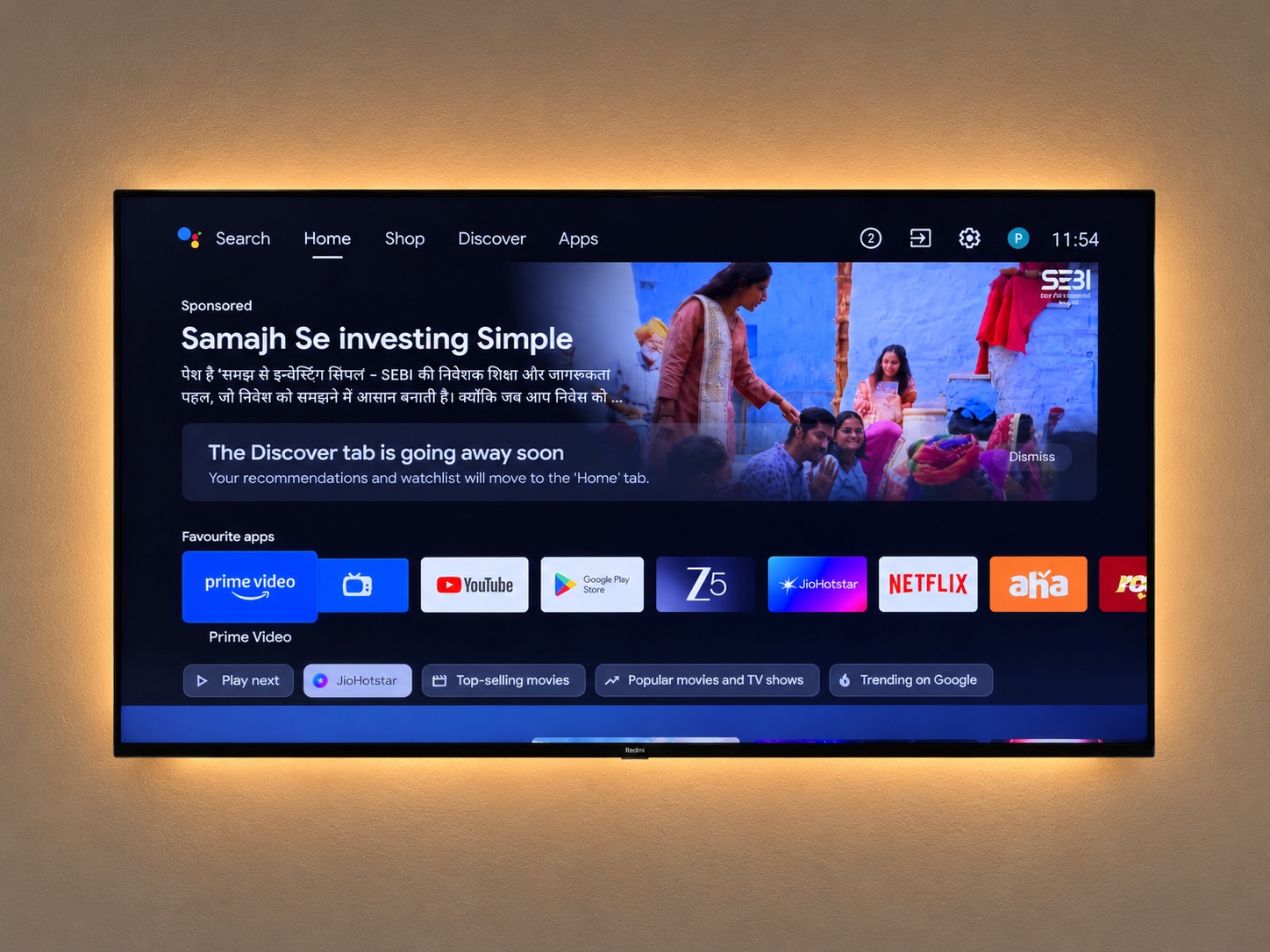
An advert on the television’s Home screen and an advert inside a YouTube video are different problems. CleanYourTV focuses on supported manufacturer home-screen clutter and selected packages. Its upstream documentation does not promise YouTube ad removal. If a streaming app is where the interruption occurs, changing the launcher may leave that interruption unchanged.
Start by noting where the advert appears: immediately after Home, in a recommendation row, or after opening a particular app. This small distinction helps you choose a relevant fix.
Try the built-in Google TV option when it fits
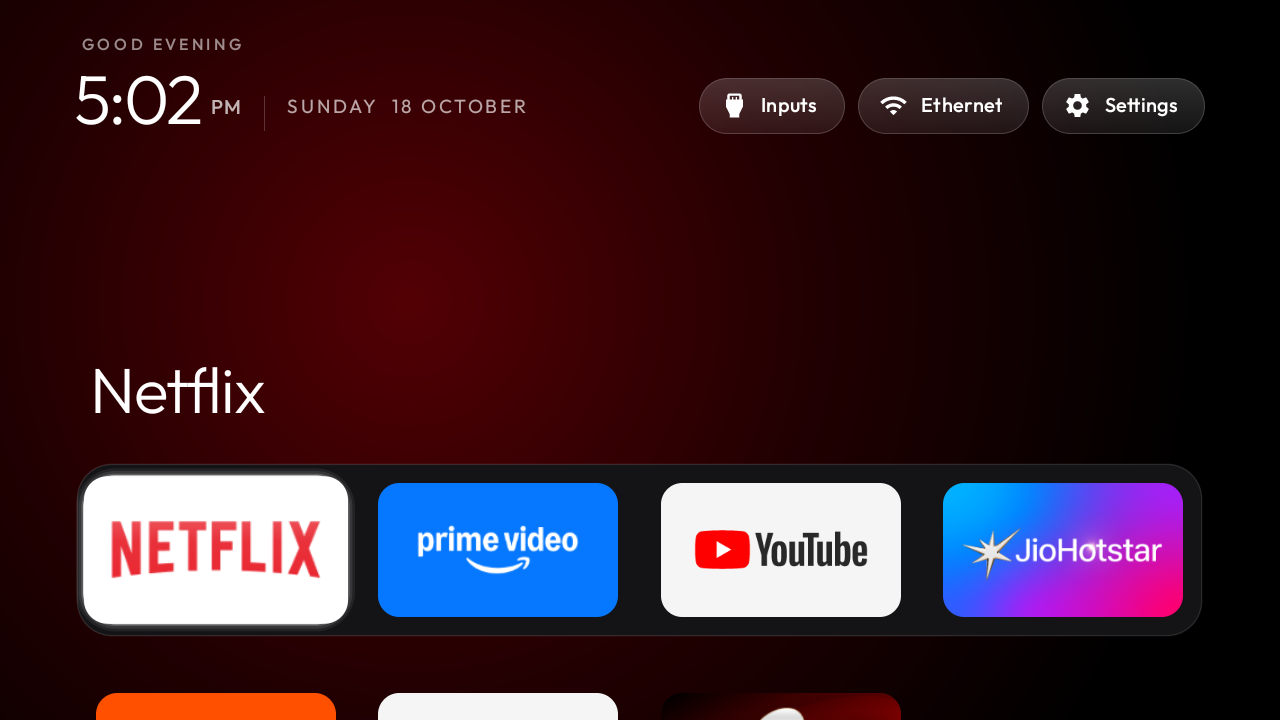
Google documents Apps only mode under the profile settings. It hides personalised recommendations, but sponsored material can remain. Search and Google Assistant are unavailable in this mode. Read Google’s current instructions before deciding whether that trade-off suits how you use the TV.
This is a useful first check when your main concern is the appearance of Home and you prefer to start with an existing setting.
Choose between a launcher and the CleanYourTV workflow
| Your goal | Starting route | What to check |
|---|---|---|
| Fewer personalised recommendations | Apps only mode | Remaining sponsored content and unavailable features |
| A different Home layout | A replacement TV launcher | Your apps, Home behaviour and remote |
| A new Home plus a reviewed package cleanup | CleanYourTV | Exact device record, proposed changes and recovery |
These are different scopes of change, not a universal ranking. If the first route solves the problem, there is no need to add more steps just because another option exists.
Check the model before downloading tools
Find the exact model, operating system and regional firmware in Settings → About. Use the CleanYourTV compatibility lookup to find community records, then open the original source. A record is a starting point, not certification.
The setup assistant separates Android TV and Google TV from Fire OS restrictions and non-Android systems. It also separates the Android phone app from the computer workflow.
Keep a recovery route before changing Home
Save the backup and instructions produced by the tool you actually use. Check the remote, HDMI, apps and casting you depend on after setup. Your own checks matter more than another model’s success story.
Use the recovery guide to identify the appropriate phone or computer restore route. This article is based on documentation; it does not report a hardware test or a measured speed improvement.
Common follow-up questions.
Does Apps only mode remove every Google TV ad?+
No. Google says sponsored content can remain. It mainly changes personalised recommendations and also removes access to some features.
Will CleanYourTV remove YouTube video ads?+
The upstream project does not promise removal of advertising served within YouTube or other streaming apps.
What should I check first?+
Identify where the advert appears, then check your exact television model, operating system and source documentation before choosing a setup route.